File Sharing Guides
How to Share Files From Mac to Android Without iCloud
Send files from a Mac to Android without iCloud, AirDrop, or cables. Practical browser and local methods that keep original quality.
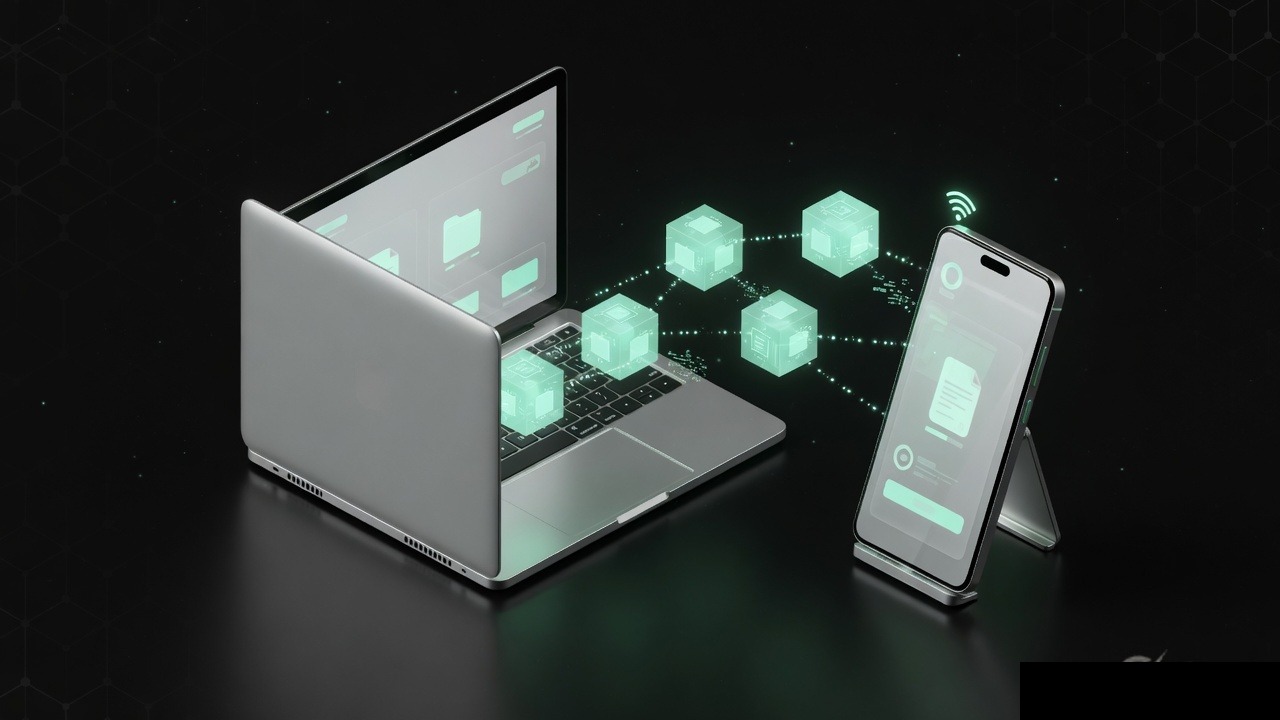
AirDrop on a Mac is lovely until the other device is an Android phone. Then the AirDrop panel is a dead end, iCloud is the wrong ecosystem, and the USB cable you found either charges only or needs extra software Finder does not include. You just wanted a PDF, a folder of photos, or an edited video to land on the phone in original quality.
You do not need iCloud for that, and you do not need to pretend the Android phone is an iPhone. This guide covers the realistic Mac-to-Android paths: browser rooms, local network tools, official Google bridges, and cables when the file is huge. It also covers the Finder and format surprises that make a “successful” transfer useless on the phone.
Why Mac to Android feels broken
Apple’s wireless stack assumes Apple on the other end.
- AirDrop will not list an Android phone. That is by design.
- iCloud is an Apple ID world. Sharing an iCloud link can work in a browser, but it is a detour if neither of you wanted Apple’s cloud involved.
- Finder does not mount Android phones the way it mounts iPhones. Plug in a Pixel or a Samsung and macOS often shrugs.
- Messages / iMessage will not save you. The Android user is not on iMessage.
So people fall back to email, WhatsApp, or a Google Drive upload they already resent. Those can work. They are not the only options, and they are not the best ones for original-quality media.
Method 1: Browser room from Safari or Chrome to the phone
The most reliable no-iCloud path is a temporary room both devices open in a browser. On the Mac you use Safari, Chrome, or Firefox. On the phone you use Chrome or the default browser. Nobody installs a Mac menu-bar utility. Nobody signs into iCloud.
[PeerPizza](/) is one option in that category: no account, a room code, an optional PIN, chat plus files, and temporary rooms that auto-clean after inactivity. There is no fixed per-file size cap, though a browser tab and your network still define what is comfortable. Keep your own backup on the Mac. When the room goes idle, it is supposed to clean itself.
Mac to Android in a few minutes
- On the Mac, open a browser and create a room.
- Copy the room code. Add a PIN if the file should not travel on the code alone.
- Text or say the code to the Android user. Do not post it publicly.
- Drag the files from Finder into the room, or use the file picker.
- On Android, join with the code and download to Files or Downloads.
- Open the file on the phone before you close the Mac tab.
- Leave the room after they confirm. It will auto-clean later.
Start the room on either side. If the big file is already on the Android phone and you want it on the Mac, reverse the same steps.
Method 2: Nearby Share, Quick Share, and official Google bridges
Google has been pushing cross-device sharing toward Windows harder than toward Mac, but a few official-ish bridges exist:
- Nearby Share / Quick Share is native on many Android phones. A Mac is not a first-class target the way a Windows PC can be. Do not expect AirDrop parity.
- Google Drive for desktop on the Mac, plus the Drive app or website on the phone, is the boring method that works if you already have a Google account and quota.
- Android File Transfer or OpenMTP on the Mac can speak MTP over USB when you want a cable and Finder will not mount the phone.
If you already live in Google’s account, Drive is honest infrastructure. If you do not, do not create a Google account just to move one video. Use a temporary room or a cable tool instead.
Method 3: Local network apps, if you are willing to install them
When both devices are on the same trusted Wi-Fi, local tools can be fast:
- LocalSend and similar open apps send over the LAN without a public upload.
- Some WebRTC sites try a direct browser-to-browser path on the same network.
These shine at home. They fail in cafes, hotels, and offices that isolate wireless clients. They also require you to trust the app and to keep both screens awake. If you wanted zero installs, skip this method.
Method 4: USB, the unfashionable fast lane
For multi-gigabyte photo dumps or long recordings, wireless is optional, not moral.
- Use a data-capable USB-C cable, not a charge-only accessory cable.
- Unlock the Android phone and set USB mode to File transfer / MTP.
- On the Mac, open Android File Transfer, OpenMTP, or whatever MTP client you use. Finder alone is usually not enough.
- Copy the files. Eject cleanly.
This path avoids iCloud, AirDrop, and upload quotas. The cost is software on the Mac and a cable that actually carries data. If the phone never appears, try another cable before you blame the phone.
Preparing files on the Mac so Android can actually use them
A transfer that completes can still fail as a usable file.
- HEIC photos from an iPhone, imported to the Mac, may not preview in every Android gallery. Export JPEG when the recipient just wants to see the picture.
- Pages, Keynote, and Numbers files are awkward on Android. Export PDF or Office formats before you send.
- .DS_Store clutter is harmless but ugly. Zip a clean folder if you are sending a set.
- Very long filenames and odd characters can break some Android file managers. Keep names boring.
- AirDrop-style “From my Mac” HEIC live photos are two files plus extra data. Send a normal still if they only need the image.
If you edited video in Final Cut or iMovie, export an H.264 MP4 for maximum Android playback luck, or keep HEVC if you know their phone plays it. Do not send a `.fcpxml` or a library package and hope.
Best practices for a clean Mac-to-Android send
- Prefer Wi-Fi on both sides. A Mac on Ethernet and a phone on congested 2.4 GHz Wi-Fi still works, but the phone is the bottleneck.
- Keep the Mac awake. A closed lid can freeze a browser upload.
- Keep the Android screen on until download hits 100%.
- Share the room code through a private channel.
- Use a PIN when the file is sensitive.
- After download, check the byte size on Android against Finder’s size. A much smaller file means something compressed it.
- Keep the Mac copy. Temporary rooms are not backups.
Troubleshooting Mac-to-Android transfers
AirDrop does not show the phone. It will not. Use a browser room, Drive, LocalSend, or USB.
The Android browser joins the room and sees nothing. Refresh after the Mac upload finishes. If you set a PIN, they must enter it. Confirm both people are on the same site.
Finder cannot see the plugged-in phone. That is normal. Install an MTP tool, unlock the phone, and choose File transfer. Try a real data cable.
The PDF opens on the Mac and is blank on Android. It may be a Pages export with odd fonts, or a password-protected file the phone viewer mishandles. Re-export a flattened PDF.
Video downloads but will not play. Codec mismatch. Re-export H.264 MP4 from the Mac, or open it in a player on Android that understands HEVC.
Upload is slow in the office. Guest Wi-Fi may throttle or isolate clients. A browser room that goes out to the internet can still succeed when pure LAN tools fail. A phone hotspot is another escape hatch.
iCloud keeps trying to insert itself. You do not need it. If macOS offers to share via iCloud Mail Drop or iCloud Drive, decline and use the method you chose.
The file vanished from the room later. Temporary rooms auto-clean after inactivity. Download while everyone is present, and keep the Mac original.
Comparison: Mac to Android without iCloud
| Method | Install on Mac? | Quality | iCloud needed? | Best for |
|---|---|---|---|---|
| Temporary web room | No | Original file | No | Everyday photos, PDFs, clips |
| Google Drive | Optional desktop app | Original if they download | No | Files that must stay available |
| LocalSend or LAN app | Yes | Original | No | Fast transfers on trusted home Wi-Fi |
| USB + MTP tool | Yes (MTP app) | Original | No | Large libraries and backups |
| AirDrop | Built-in | Original | No | Apple devices only |
| Email / chat default | No | Often limited or compressed | No | Tiny documents |
A simple decision guide
- A PDF or a few photos, right now: temporary browser room.
- An edited video you care about: same, on Wi-Fi, with both screens awake. Check playback on the phone before you close the laptop.
- A 20 GB camera dump: USB and an MTP app.
- They will grab it tonight: Drive or another cloud link you already have, still without iCloud.
- You are on hostile public Wi-Fi: prefer a trusted HTTPS room or wait for a better network. Do not throw private files at a random LAN app on cafe Wi-Fi.
Final thoughts
A Mac and an Android phone do not share AirDrop, and they do not need to share iCloud either. Open a browser on both, move the original file through a temporary room, or use USB when the pile is huge. Export formats Android can open, confirm the download, and keep the copy on your Mac. That is a complete workflow. The missing AirDrop button is annoying. It is not a requirement.
Try PeerPizza: free temporary rooms to chat and share files — no signup, room codes, optional PIN, auto cleanup. Open home