Photo Sharing
How to Share Photos Without WhatsApp Compression
Keep full photo quality when sending images to friends and family—practical alternatives to default chat compression.
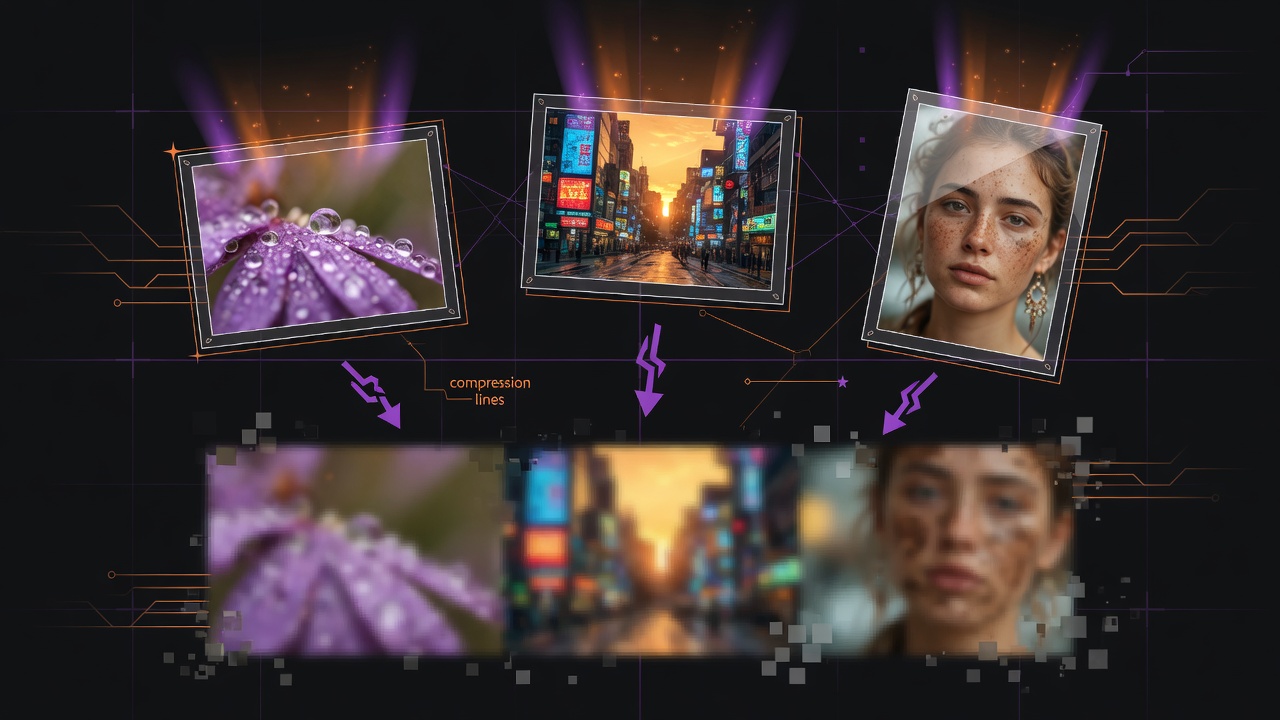
You take a sharp photo on your phone. You send it in a chat. The other person opens a softer, blurrier version. The culprit is usually automatic compression: messaging apps shrink images so they upload faster and use less data. That is convenient for quick snaps, and frustrating when detail actually matters.
This guide explains why compression happens and how to share photos at higher quality without turning every transfer into a technical project.
Why chat apps compress photos
Messaging platforms optimize for speed and bandwidth. A full-resolution phone photo can be several megabytes or more. Compressing it:
- Speeds up send and receive on mobile networks
- Saves storage on servers and devices
- Makes group chats less heavy
The tradeoff is lost detail: fine text on signs, fabric texture, night-sky noise, or print-ready sharpness. If you only need a casual preview, compression is fine. If you need the real file, you need a different path.
Quick options that preserve more quality
1. Send as a document or file, not as a photo
Many apps treat “photo†and “document†differently. Document or file mode often skips the aggressive image pipeline. On WhatsApp and similar apps, choose the document option, select the image file, and send. The recipient downloads the original-ish file instead of a chat-optimized preview.
This works well when both people use the same app and size limits allow it.
2. Use built-in “HD†or “original quality†settings
Some apps offer a quality toggle before you send. Look for labels like HD, original, or full quality. Results vary by platform and version, so test with one photo if quality is critical.
3. Temporary full-file upload rooms or links
Upload the original image files to a temporary sharing space and send a code or link. The other person downloads the actual files rather than a recompressed chat thumbnail. Tools built around temporary rooms—for example [PeerPizza](/)—are designed for this kind of short handoff: share originals, confirm the download, and let the room clean itself up later.
4. Cloud links from storage you already use
If you already keep photos in a cloud album, share a link with download permission. This is better for larger batches and longer availability. Remember that “view only†links may not give the full original download depending on settings.
5. Same-room local transfer
When you are physically near each other, AirDrop, Nearby Share, Quick Share, or a cable still win. No recompression from a chat server, and no extra account steps if devices support it.
Step-by-step: high-quality send for everyday people
- Decide how good is good enough. Social viewing can tolerate mild compression. Printing, design work, and portfolio shots usually need the original.
- Check file size. Very large RAW files may need a different workflow than everyday JPEG or HEIC photos.
- Prefer document/file mode inside chat if you stay in-app.
- For batches or mixed recipients, use a temporary room or a cloud download link.
- Ask the recipient to save the file to their gallery or computer, not only to open a preview.
- Keep your own original. Never assume a temporary link is a backup.
HEIC, JPEG, and compatibility
Phone brands do not all store photos the same way. HEIC is common on iPhones; many Android users and older apps expect JPEG. If someone cannot open your file:
- Export or share as JPEG when compatibility matters more than absolute maximum efficiency.
- Or tell them which app opens HEIC on their platform.
Quality preservation is useless if the other person cannot open the format. Choose the format that matches their device when in doubt.
Sharing multiple photos without quality loss
Sending twenty images one by one in chat is slow and still risks compression. Better patterns:
- Zip a folder of originals (if both sides can unzip easily).
- Upload the set to a temporary room and share one code.
- Use a shared album with download enabled for family events.
For class projects, travel groups, or event volunteers, one room or album beats a messy chat thread of compressed thumbnails.
Privacy tips when photos matter
High-quality photos can include location metadata, faces, documents in the background, or kids at school events. Before you share:
- Share only with people who should see the images.
- Prefer codes or private links over public posts.
- Use a PIN if the tool offers one and the set is sensitive.
- Avoid uploading highly private images to services you do not trust.
- Strip or review location data if you are concerned about geotags (device settings and export tools vary).
Temporary rooms help because they expire, but expiry is not a substitute for careful recipient choice.
When compression is actually fine
Do not over-engineer every send:
- Memes, reaction images, and casual selfies
- Quick “which shirt?†product questions
- Low-stakes group chat updates
Save the original-quality workflow for photos you would be sad to see degraded.
Troubleshooting soft-looking downloads
If the file still looks soft:
- Confirm they opened the downloaded file, not a chat bubble preview.
- Check whether their gallery app applies its own display filters.
- Verify you did not export a reduced-size copy before sharing.
- Try another path (document mode vs temporary upload) to isolate the issue.
Sometimes the original photo was already soft due to night mode, digital zoom, or motion blur. Sharing cannot invent detail that was never captured.
Final thoughts
WhatsApp-style compression is a default for convenience, not a law of nature. For important images, send as a document, use original-quality toggles, share full files through a temporary room or cloud link, or transfer locally when you are nearby. Keep masters on your device, choose recipients carefully, and download before temporary links expire. That is how you keep photos looking like the ones you actually took.
Try PeerPizza: free temporary rooms to chat and share files — no signup, room codes, optional PIN, auto cleanup. Open home