File Sharing Guides
How to Send Files to a Print Shop Without Email Hassle
Deliver print-ready PDFs and design files to a shop without bounced email, missing fonts, or last-minute USB runs.
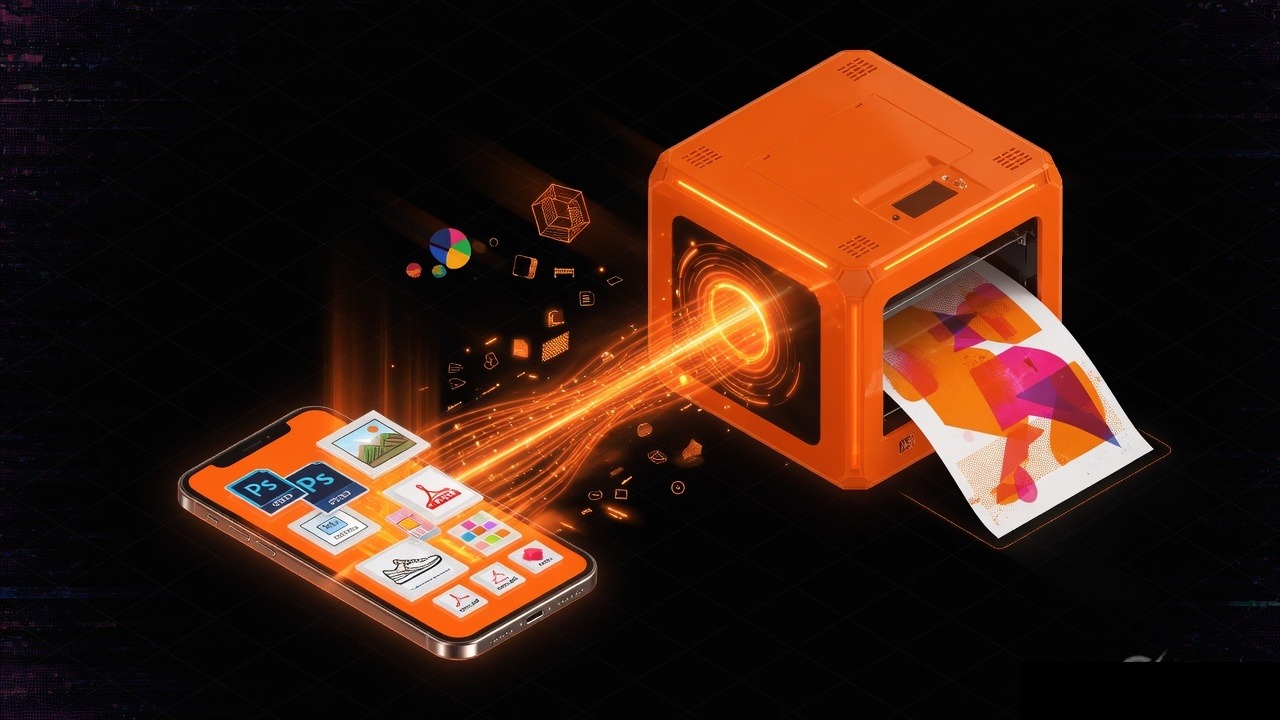
Print shops live on deadlines that do not care about your inbox. A poster, wedding suite, or batch of business cards is ready in the design file, the counter needs it this afternoon, and email either rejects the attachment or delivers a version the RIP software cannot trust. The shop did not ask for a novel about your cloud account. They asked for a file that prints.
You can hand off print-ready PDFs and packaged design files without a USB run across town and without bouncing off a 25 MB mailbox. This guide covers how to prepare the file, how to send it, and how to confirm the shop received the right pages at the right size.
What a print shop actually needs
A pretty screen export is not a print file. Before you choose a transfer method, assemble what the shop asked for:
- A print-ready PDF (often PDF/X) at the correct page size
- Bleed and crop marks if the job trims
- Fonts outlined or embedded
- Images at print resolution, not social-media previews
- Color mode they specified (often CMYK for offset, sometimes RGB for certain digital presses)
- A flat note about quantity, paper, sides, and finish
If they also want native files (InDesign, Illustrator, Photoshop), package the job with links and fonts. Do not send an unsaved working file from a laptop that still has missing images.
Prepare the file before you think about sending
Most reprints come from preparation, not from the transfer tool.
- Export once, open the PDF, and check every page at 100 percent zoom for dropped images and leftover placeholder text.
- Confirm trim size. A4 is not US Letter. A 24 by 36 inch poster is not an 11 by 17 tabloid that someone will "just scale."
- Include bleed (often 3 mm or 0.125 in) unless the shop said they will add it.
- Outline decorative fonts if the shop requested outlines. Keep a text PDF only if they will edit copy.
- Name files with the job, not your mood: `Nguyen-Wedding-Menu-5x7-bleed.pdf` is searchable on a busy counter computer.
- Keep a master copy on your own disk. Whatever you upload is a courier copy.
If the shop sent a spec sheet, follow it even when your screen looks fine. Screens lie about color and sharpness.
Method 1: The shop's own upload page
Many printers already have a web form, FTP-style drop, or order ticket with file upload. Use that first. It attaches your file to their job number, which email never does reliably.
Fill the ticket completely: name, phone or email they already have, job nickname, quantity, and due time. Upload the final PDF, not a screenshot of the PDF. If the form rejects the size, do not silently switch to a random file host without telling them where to look.
Method 2: Email, only when the file is small and they asked for it
Email still works for a one-page flyer under typical attachment limits. It fails for:
- Multipage photo books
- Large-format posters
- Packaged InDesign folders
- Several versions sent as "final_final_2"
If you must email, put the job name in the subject and the due time in the first sentence. Attach one clearly named PDF. If the bounce message mentions size, stop. Change the path instead of compressing the file into an unprintable mush of artifacts.
Method 3: A temporary browser room the counter can open
When the shop can open a laptop browser — almost always — a short-lived room is a clean alternative to email. You create a room, share a room code, optionally add a PIN, drop the print PDF (and a notes text file if needed), and they download the original.
[PeerPizza](/) is one browser-based option in that category: no account, room code access, optional PIN, chat plus files if you need to say "use the menu file, ignore the draft," and rooms that auto-clean after inactivity. There is no fixed per-file size cap, which matters for poster PDFs. Remind the shop to download immediately, and keep your own backup. Temporary rooms are not a reprint archive.
A counter-friendly sequence
- Call or message the shop that a file is coming and what the job is called.
- Create the room. Set a PIN if you will speak the code over a noisy counter.
- Upload only the files they should print.
- Send the code (and PIN) in a text or write it on the order slip.
- Stay available until they confirm the PDF opens and the page size looks right.
- Do not delete your local master after they say thanks.
Method 4: Cloud links and USB, still valid
A Drive or Dropbox link works when the shop is comfortable signing into a browser and the file must remain available overnight. Set the link to view-and-download, not edit. A USB stick still wins for huge packaged jobs if you are going to the counter anyway. Label the stick. Eject it properly. Assume they will copy the file off and hand the stick back.
What to write on the order so the file gets used
The file is useless if the ticket is vague. Include:
- Job name matching the filename
- Page count and finished size
- Color: CMYK, black only, or as discussed
- Paper stock and coating if already chosen
- Sides, folding, binding, or large-format mounting
- Which file to ignore if you uploaded a spare
- Your deadline, not just "ASAP"
If you used a temporary room, write the room code on the ticket. Do not hide it in a chat the intern does not watch.
Color, fonts, and the lies previews tell
- Phone screens are bright and saturated. Press output is not.
- Missing fonts replace themselves with something close enough to embarrass you.
- RGB photos can shift when converted late. Convert on purpose if the shop asked for CMYK.
- Transparency flattening issues show up as white boxes or dropped shadows. Ask the shop if their RIP prefers a flattened PDF/X.
- Spot colors (foil, pantone) must be named the way the shop expects, or they become CMYK approximations.
If color is critical, ask for a proof. A cheap digital proof is less expensive than a stack of wrong cards.
Security and common-sense limits
Wedding stationery, event badges, and corporate letterhead can include addresses and logos you do not want floating on a public link. Share the code only with the shop. Use a PIN. Do not put passport scans in the same room as a poster. Temporary cleanup helps, but the live window is still a live window.
Troubleshooting print-shop file handoffs
Email bounced. The attachment was too large or blocked. Use the shop upload form, a temporary room, or a labeled USB. Say which one in a short follow-up.
They opened a low-resolution preview. You sent a JPG export or a chat-compressed image. Resend the print PDF as a real file, not a photo of the first page.
Fonts substituted. The PDF did not embed or outline type. Re-export with fonts embedded, or outline type and send again.
Page size is wrong in their preview. Your export used the document board instead of the trim size, or you designed in pixels. Re-export at the physical size they quoted.
Images look blocky. The file contained web-resolution screenshots. Replace them from the original photos and export again. Do not "sharpen" a 72 ppi image and hope.
The room or link expired overnight. Temporary rooms auto-clean after inactivity. Re-upload in the morning or use a longer-lived shop ticket / cloud folder for jobs that span days.
They printed an old version. You sent three files with similar names. Send one file, name it with the date, and say "ignore previous."
Comparison of ways to reach a print shop
| Method | Typical friction | Best for |
|---|---|---|
| Shop upload ticket | Form fields | Official jobs with a job number |
| Email attachment | Size limits | Small one-page PDFs they requested |
| Temporary browser room | They must download soon | Large print PDFs, same-day handoff |
| Cloud download link | Permissions and accounts | Overnight review, multiple staff |
| USB stick at the counter | You have to visit | Huge packaged native jobs |
A simple decision guide
- The shop has an upload form: use it
- Small flyer, they asked for email: email one named PDF
- Poster or photo-heavy deck, needed today: temporary room plus a phone call
- Job spans several proof rounds: a folder they can reopen, not a room that will vanish
- You are already going to the counter: USB or a room code written on the ticket
Final thoughts
Sending files to a print shop is a production task, not a messaging task. Export a real print PDF, name it after the job, put the specs on the ticket, and choose a path that preserves the original file. Use the shop's own upload when it exists. Use email only when the file is small enough to be boring. Use a temporary browser room when the inbox will not carry a poster. Whatever you pick, keep your master copy, confirm they opened the correct page size, and do not consider the job sent until the counter says the file is on their machine.
Try PeerPizza: free temporary rooms to chat and share files — no signup, room codes, optional PIN, auto cleanup. Open home