File Sharing Guides
How to Share Files Between Windows and Linux Without a USB Cable
Move documents, photos, and project folders between Windows and Linux without USB sticks, Samba pain, or dual-boot rituals.
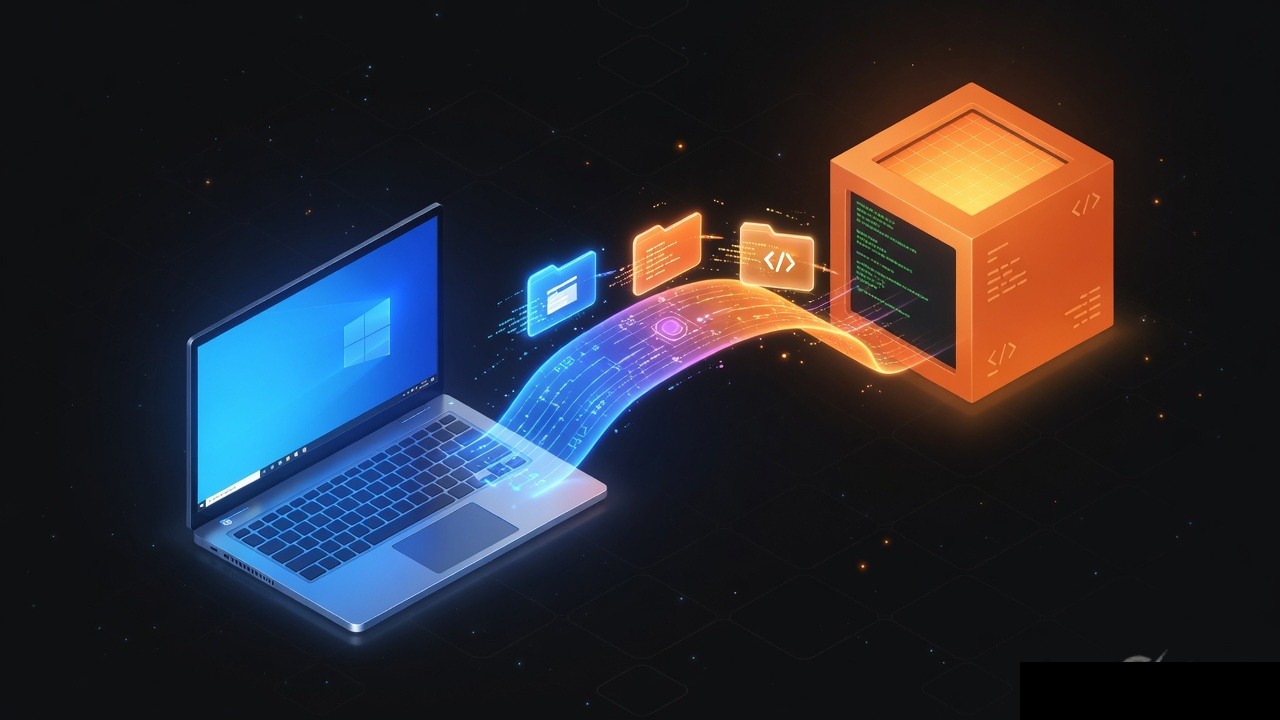
Windows and Linux can live on the same desk and still act like they have never met. The USB stick you used last month is missing. Samba wants a password you do not remember. Dual-boot file systems look mounted until they are read-only. You only needed to move a project folder, a video, or a handful of PDFs from one operating system to the other.
You do not need a cable for that handoff. Browser rooms, same-network shares, and a few built-in tools can move files between a Windows PC and a Linux machine while both stay where they are. This guide stays practical: pick a method that matches how long the file must exist, then confirm it arrived intact.
Why the USB habit breaks down
Cables and thumb drives still work. They also create the exact delays people complain about:
- The drive is formatted NTFS, and your Linux install mounts it with odd permissions
- The drive is exFAT, and one machine is missing the driver you expected
- You forget the stick in the other computer
- Large copies abort when the drive is pulled a moment too early
- You did not want a third filesystem in the story at all
If both computers are online, skip the stick unless you are moving an archive so large that uploading it would be the slower joke.
Method 1: A browser room both desktops can open
The least argumentative path is a temporary room in a normal browser. Chrome, Firefox, Edge, and the browser you already have on Linux all speak the same upload and download APIs.
A tool such as [PeerPizza](/) is built for this: no account, a short room code, an optional PIN, chat plus files if you are talking to yourself across two machines or to a teammate, and rooms that auto-clean after inactivity. There is no fixed per-file size cap. Create the room on Windows, join it on Linux (or the other way around), upload, download, and keep your own backup because the room is not a second hard drive.
Steps that work on both operating systems
- Open a desktop browser on the sending machine.
- Create a room and copy the room code. Set a PIN if the code will sit on a shared whiteboard.
- Open a browser on the receiving machine and join with the same code.
- Upload the files. For many small files, a zip can be kinder than a dozen separate clicks.
- Download on the other side into a folder you control, then open one file as a sanity check.
- Leave the room. Expect cleanup after inactivity.
This path also works when the two computers are not on the same LAN — a Windows laptop at a cafe and a Linux desktop at home — because both talk to the site over HTTPS instead of discovering each other on the local network.
Method 2: Same Wi-Fi, different tools
If both machines sit on a trusted home or office network, local transfer can be faster than any internet upload:
- SCP or SFTP from Windows (WinSCP, FileZilla, or Windows OpenSSH) into the Linux machine if SSH is on
- Samba / Windows file sharing if you already maintain it and remember the credentials
- LocalSend or similar LAN apps when you are willing to install a small utility on both sides
- A Python or built-in HTTP directory on Linux (`python3 -m http.server`) for a quick, trusted, one-shot download — only on a network you trust
Local methods shine for multi-gigabyte folders. They fail on guest Wi-Fi with client isolation, and they require more setup than a room code. Do not expose a wide-open file share to a cafe network.
Method 3: Cloud folders you already use
If both machines are already signed into the same Drive, Dropbox, Nextcloud, or similar account, put the file in a folder and wait for sync. This is the right choice when:
- The file must remain available for days
- You will edit it on both systems over time
- Several people need the same copy
It is the wrong choice when you are avoiding accounts on purpose, or when you only need a one-time dump and do not want another synced folder cluttering both desktops.
Method 4: Email and chat, with honest limits
A small PDF can still ride email or a chat app's document mode. Line endings and executable bits do not matter for a resume. They do matter for shell scripts and tarballs. Send those as a `.tar.gz` or `.zip` so Windows mail clients do not "helpfully" alter them. Size limits still apply. This is not how you move a virtual machine disk.
Windows and Linux specifics that actually bite
Cross-OS copies look finished and then surprise you a day later. Watch for:
- Line endings. Windows uses CRLF. Many Linux tools prefer LF. Text files and scripts may need a conversion (`dos2unix` or your editor's setting).
- Execute bits. A script that ran on Linux will arrive from a Windows zip without `+x`. `chmod +x` after unpacking.
- Case sensitivity. `Readme.md` and `readme.md` can coexist on Linux and collide on Windows.
- Reserved names. `CON`, `NUL`, and trailing dots are legal-ish on Linux and painful on Windows.
- Symlinks. Zip tools sometimes turn links into copies or skip them. Test if your project depends on them.
- Filename encoding. Unusual Unicode names can look fine until a tool refuses to open the path.
If you are moving a software project, prefer `git` remotes over ad-hoc file copies. The working tree is not the whole story; history and hooks live elsewhere.
Permissions, privacy, and two-user households
A room code on a family Windows PC is visible to whoever walks by the monitor. Use a PIN if the content is not household-public. Do not upload SSH private keys, password databases, or tax PDFs to a casual temporary room. Local SCP into your own Linux user account is the more appropriate path for those files.
Temporary rooms auto-clean after inactivity, which is good hygiene for a homework PDF and insufficient policy for secrets.
Packaging tips that prevent a second send
- Zip a folder when it contains many small files.
- Include a short `README.txt` if the recipient is you-on-the-other-OS at midnight.
- Prefer open formats (PDF, PNG, FLAC, markdown) when the other system may lack a licensed app.
- For Office files, send `.docx` / `.xlsx` rather than old `.doc` if you can.
- After download, check disk space. A "failed" transfer is sometimes a full home partition.
Troubleshooting Windows–Linux transfers
The Linux browser will not download. Check whether the browser is snap-confined and saving to an unexpected directory, or whether a popup blocker ate the download. Try Firefox if Chromium is stuck, or the reverse.
Upload hangs at the end. Stay on the tab. Disable aggressive power saving on a Windows laptop. Retry on a wired connection if Wi-Fi is congested.
Samba share never appears. Discovery is flaky across modern Windows and some desktop Linux builds. Use the IP address (`\\192.168.x.x` or `smb://192.168.x.x`) instead of relying on the network neighborhood.
Permission denied on Linux after copy. The files may be owned by another user or extracted without write permission. Check `ls -l` and own the directory if it is yours.
A script does nothing. Missing execute bit or CRLF line endings. Fix those two before rewriting the script.
Public Wi-Fi blocked the LAN tool. Client isolation is doing its job. Use a browser room over HTTPS instead of peer discovery.
The room is gone. Temporary rooms clean up after inactivity. Re-upload. That is the product behaving as designed.
Comparison of Windows-to-Linux paths
| Method | Same LAN needed? | Account? | Best for |
|---|---|---|---|
| Browser temporary room | No | No | Everyday docs, photos, mixed locations |
| SCP / SFTP | Usually yes (or VPN) | SSH user | Repeat transfers you control |
| Samba share | Yes | Share credentials | Household folders already set up |
| Cloud sync | No | Yes | Files that must stay available |
| USB stick | No | No | Huge offline copies |
| Email / chat | No | Usually | Small single documents |
A simple decision guide
- One-time PDF or photo set, any network: browser room
- You already have SSH on the Linux box: SCP and stop thinking about it
- Shared family folder that already works: Samba
- Ongoing project: git plus cloud or SSH, not a temporary room
- Secrets: local encrypted path or SSH, not a casual room code
- No internet, both machines in reach: USB or a trusted local HTTP/SCP link
Final thoughts
Windows and Linux do not need a USB cable to exchange ordinary files. Use a browser-based temporary room when you want zero setup and both machines have a browser. Use SSH or an existing share when you already maintain that plumbing. Use cloud sync when the file should still be there next week. Keep your own backup, watch line endings and execute bits on anything that is not a PDF, and treat temporary cleanup as a feature. The less time you spend formatting thumb drives, the more time you have to actually open the file on the other desktop.
Try PeerPizza: free temporary rooms to chat and share files — no signup, room codes, optional PIN, auto cleanup. Open home